Monday, August 6, 2012

Not able to see the Deleted mailboxes in Disconnected mailbox


Issue: Not able to see the deleted mailboxes in Disconnected mailbox option after I was deleted the mailboxes.
As per the microsoft it will not show the deleted mailboxes on the spot as it will show once you run the below command; Once you run below command, it will show all the disconnected mailboxes'
If you don't run the above command, it will show once it ran the online maintenance of the DB.

Get-Mailboxdatabase | Clean-MailboxDatabase

http://smtpport25.wordpress.com/2009/04/22/deleted-mailbox-not-appearing-in-disconnected-mailbox-in-exchange-2007/

http://msunified.net/2009/05/13/deleted-mailbox-not-appearing-in-disconnected-mailbox-in-exchange-2007/

Friday, August 3, 2012

Install Remote Agents on Windows2008 R2 Servers

When you install the Remote Agent on Server's you might get the below error;

Below are the 2 steps to resolve this issue.


Installing Remote Agent on Windows Server 2003, Windows2008 & Windows2008 R2 in 2 ways;

1) You can install as shown in fig.


2) The best way would be installing remote agent in Silent Mode.For 32-bit remote servers
1  : Copy the RAWS32 and MSXML folders from the Backup Exec Server in a new folder on the Remote Server (C:\prog. files\symantec\backup exec\agents\RAWS32 and MSXML)
2  : On the Remote server, open command prompt and navigate to the RAWS32 folder and run setupaa.cmd
Example : D:\BEAGENT\RAWS32\>setupaa.cmd
3  : Go to Start-->All Prog-->Symantec-->Remote Agent Utility
4  : Click on the Publishing TAB, enable Publiching and ADD the NAME OR the IP Address of the BE Server, Restart the Remote Agent Service on the Remote Server
This will install the Remote Agent in Silent Mode
For 64-bit Remote Server:
1  : Copy the RAWSx64 folder instead of RAWS32 and run setupex64.cmd insteed of setupaa.cmd and follow the steps above


Once you installed Agent by using CommandPrompt, you will get BackupExec Remote Agent Tool, open that & add BackupExec. Server IP as shown below 


Here you completed the Installation of Remote Agent on Windows Server 2003 /2008/2008 R2

Wednesday, July 25, 2012

Enable Remote Desktop Connections on Windows2008 R2

Steps to Enable Remote Desktop Connections on Windows2008 R2;


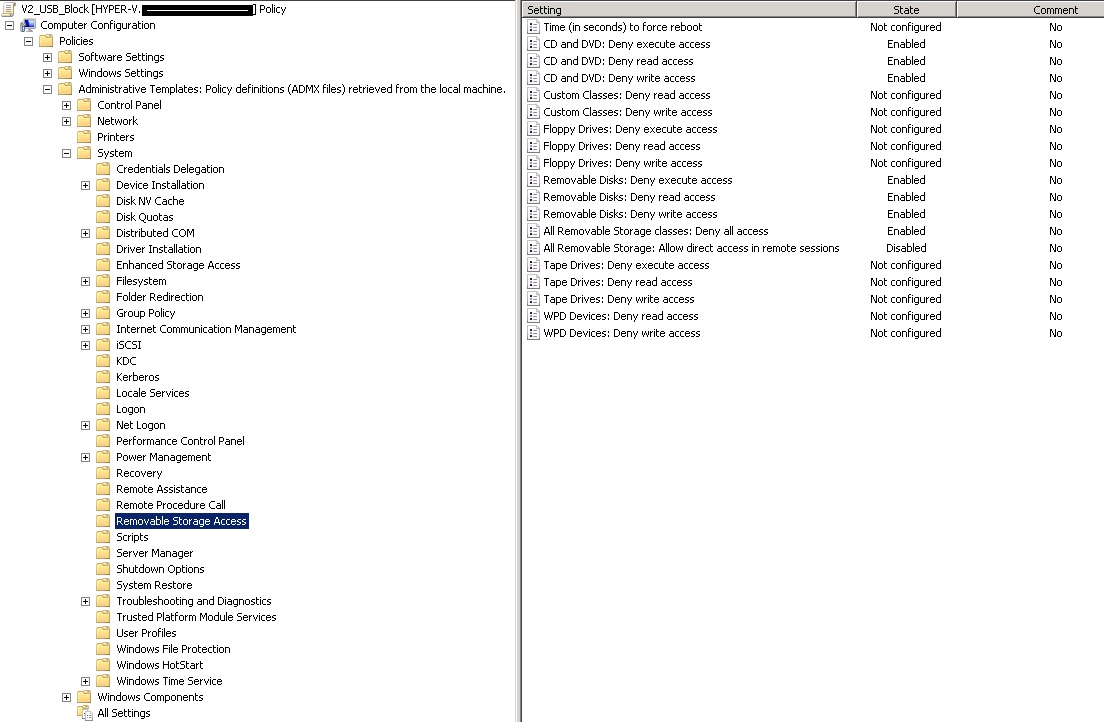
Block USB Storage Drive-Pen Drives-DVD-CD-Rom by using AD2008 GPO & Local GPO


Steps to block USB Storage Devices & DVD-CD-Rom drives by using GPO on Windows2008 & R2, below are the screen shots which are taken in Windows2008R2 AD.


Steps to block USB Storage Devices & DVD-CD-Rom drives by using Local GPO.
You can block it by using GPEDIT.MSC on a local PC of Windows7:


Even we can Block & UnBlock by Registry;


https://skydrive.live.com/?cid=ca38b51fb54ad84f&Bsrc=Share&Bpub=SDX.SkyDrive&resid=CA38B51FB54AD84F!214&id=CA38B51FB54AD84F%21214 - Disable USB Block


https://skydrive.live.com/?cid=ca38b51fb54ad84f&Bsrc=Share&Bpub=SDX.SkyDrive&resid=CA38B51FB54AD84F!214&id=CA38B51FB54AD84F%21214 - Enable USB Block


Monday, July 23, 2012

Commands (ipconfig, gpupdate/force, ipconfig/all etc.) are not working in Command Prompt on Windows7

This issue occurs normally when your PATH environment variable is not set correctly. SO you have to follow below steps to resolve it;


1. In a command prompt window, type 

echo %path%

This should display the PATH environment variable. In particular, it should have the directories path added  C:\Windows\system32 and C:\Windows in it. If it doesn't, this is your problem.

To fix it, do this:

1. Right-click Computer and select Properties.
2. Click the Advanced system settings link on the left.
3. Click the Environment variables button.
4. Find Path in the System variables list box and click the Edit button.
5. Add those two directories, C:\Windows\system32 and C:\Windows separated by a semicolon and terminated by a semicolon, at the front of the path environment variable.
6. OK out of everything.


Now it should fix your issue & enjoy.


it should look like as shown in below fig;